When you spend hours scripting, filming, and editing a video, the last thing you want is for YouTube to mangle it on release. Yet thousands of creators publish content every day that looks amateurish before a single word is spoken—all because of one overlooked detail: aspect ratio.
Aspect ratio determines how your video fits a viewer’s screen. Get it wrong on YouTube Shorts, and the platform will forcibly fit your video into its mobile player. That means one of three channel-killing results:
- Pillarboxing or Letterboxing: Giant black bars clamp around your content, wasting up to two-thirds of the screen and screaming “unprofessional.”
- Awkward Auto-Cropping: Crucial details are chopped off at the edges, leaving speaker heads half-framed or action cut mid-frame.
- Buried Text: Your captions, title overlays, or callouts end up directly underneath YouTube’s hardcoded UI buttons (like, comment, share, and channel handle), making them totally unreadable.
In the fast-scrolling world of Shorts, viewers decide whether to watch or swipe away in less than two seconds. A poorly formatted video signals low quality instantly. Getting your aspect ratio right ensures your content looks crisp, takes up 100% of the mobile screen, and keeps your key visuals front and center.
Core Specifications at a Glance
SpecificationRecommended: Value
Aspect Ratio: 9:16 (Vertical / Portrait)
Standard Resolution1080: × 1920 px (Full HD)
Minimum Resolution: 720 × 1280px.
4k resolution: 2160 × 3840 px
Alternative Ratio: 1:1 (Square – 1080 × 1080 px; supported, but creates black bars)
Max Duration: 3 minutes
Why 9:16 is Essential
Full-Screen Coverage: Fills 100% of the mobile screen, eliminating black bars (letterboxing/pillarboxing).
Algorithmic Categorization: YouTube automatically recognizes videos that are under 3 minutes and shot in a vertical (9:16) or square (1:1) format, placing them directly into the high-traffic Shorts feed.
Safe Zone Alignment: Designing in 9:16 allows you to keep text, captions, and logos inside the central active zone, ensuring they aren’t obscured by UI elements like the Subscribe button, audio title, or like/comment sidebar.
Understanding the 9:16 Aspect Ratio (Why It Matters)
Before setting up your timeline or exporting your next clip, it’s critical to understand what the 9:16 aspect ratio actually means—and why YouTube treats it as a strict requirement for Shorts.
What Does 9:16 Mean?
An aspect ratio represents the proportional relationship between a video’s width and height.
- A standard landscape video (like a traditional YouTube video or TV broadcast) uses a 16:9 ratio—it is 16 units wide for every 9 units tall.
- Flip that concept vertically, and you get 9:16—a frame that is 9 units wide for every 16 units tall.
In digital video terms, this translates to tall, vertical footage designed to fit modern smartphone screens end-to-end without requiring users to rotate their devices.
Why 9:16 Is Essential for YouTube Shorts Success
1. Maximizing Screen Real Estate
Over 85% of mobile content consumption happens while holding a phone vertically. A standard 16:9 landscape video displayed vertically leaves massive black bars above and below the frame, occupying less than 35% of the screen.
A 9:16 video fills 100% of the mobile screen, instantly creating an immersive, distraction-free viewing experience that holds viewer attention far longer.
2. Automatic Feed Classification
YouTube’s algorithm uses video dimensions as a primary filter. To be automatically recognized, indexed, and pushed into the dedicated Shorts Feed, your video must meet two criteria:
Length: Under 3 minutes (up to 180 seconds).
Shape: A vertical (9:16) or square (1:1) aspect ratio.
If you upload a standard 16:9 horizontal video—even if it’s only 15 seconds long—YouTube will categorize it as a regular long-form video rather than sending it through the high-reach Shorts Feed.
3. Higher Viewer Retention & Engagement
Vertical video removes friction. Because users can seamlessly swipe up to watch the next clip without turning their phone, vertical formats naturally generate higher completion rates and replay loops. On platforms driven by algorithmic discovery, higher retention directly translates to broader organic distribution.
YouTube Shorts Safe Zones: Protecting Your Text and Visuals
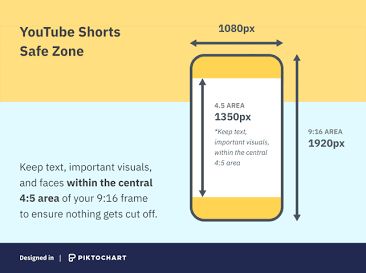
You can export a video in perfect 1080 × 1920 resolution, but if your text or key visuals sit in the wrong spot, YouTube’s built-in interface will cover them up. Unlike long-form videos—where captions and controls sit neatly outside the frame—YouTube Shorts stacks interactive UI elements directly on top of your video content. Understanding Safe Zones is the difference between a high-converting, professional Short and one whe
The Danger Zones: What Covers Your Video?
When a viewer watches a Short on mobile, YouTube layers several persistent interactive elements over the frame:
Top Edge (~150px to 250px): Covered by the device’s status bar, search bar, camera notch, and navigation icons.
Bottom Edge (~380px to 450px): Reserved for your video title, channel name, handle, subscriber button, audio track details, and the video progress bar.
Right Edge (~130px to 150px): Covered by action icons: Like, Dislike, Comments, Share, Remix, and the channel avatar/audio thumbnail.
The Golden Metric: The 900 × 1160 Safe Box
To ensure every viewer can see your content regardless of their phone screen size or aspect ratio, keep all essential elements within a centered 900 × 1160 pixel area.
Frame Region: Dimension Margin
Top Margin Top: 380 pixels
Bottom Margin : Bottom ~380–450 pixels
Side Margins: Left & Right ~90–130 pixels
Central Safe Area: 900 × 1160 pixels
3 Golden Rules for Safe-Zone Layouts
Center Your Captions and Subtitles: Never place hardcoded auto-captions at the very bottom of the screen. Position titles and captions slightly above the vertical midpoint so they hover comfortably above the video title overlay.
Mind the “Right-Hand Thumb Zone“: Avoid placing key visual subjects, secondary logos, or explanatory arrows along the right edge. The comment and like buttons will obscure them entirely.
Use Grid Overlays While Editing: Before editing, download or create a transparent PNG overlay of the YouTube Shorts UI. Drop it onto the top track in Premiere, CapCut, or DaVinci Resolve so you can visual-check your graphics before exporting.
Can You Use Square (1:1) or Horizontal (16:9) Videos?
While YouTube Shorts is designed primarily for vertical content, creators often ask whether existing square or standard landscape videos can be published as Shorts. The short answer is yes, but with significant trade-offs.
Here is how YouTube treats non-vertical formats and how to handle them effectively.
1. Square Videos (1:1 Aspect Ratio)
YouTube officially recognizes square videos ($1080 \times 1080\text{ pixels}$) as Shorts, provided they are 60 seconds or shorter.
How They Appear: YouTube automatically adds black bars (letterboxing) above and below your video to force it into the vertical Shorts feed player.
The Drawback: Square videos occupy only about 50% of the mobile screen. This empty space creates a less immersive experience, which can lead to higher swipe-away rates compared to full-screen 9:16 videos.
Best Use Case: Quick repurposing of Instagram feed posts or Facebook video ads when you don’t have time to re-edit the source files.
2. Horizontal Videos (16:9 Aspect Ratio)
If you upload a standard widescreen video ($1920 \times 1080\text{ pixels}$) to YouTube, it will NOT automatically qualify as a Short, even if it is under 60 seconds. YouTube will publish it as a standard long-form video instead.To convert a 16:9 horizontal video into a valid YouTube Short, you must convert its canvas to a vertical format prior to uploading.
Modern editing tools like Adobe Premiere Pro (Auto Reframe feature) and CapCut (Auto Reframe / Canvas blur) can automatically track movement and convert 16:9 footage into 9:16 with a single click.
While 1:1 square videos work in a pinch, 9:16 vertical is always superior for YouTube Shorts performance. If you have horizontal footage, take the extra minute in your editing software to crop or reframe it to $1080 \times 1920\text{ pixels}$ so you utilize 100% of the viewer’s screen real estate.
How to Set Up Your Video Editor for YouTube Shorts
Setting up your editing canvas correctly before cutting footage prevents stretched video, black bars, and low-resolution renders.Whether using desktop software or a mobile app, configure your sequence settings to a 9:16 vertical aspect ratio ($1080 \times 1920\text{ pixels}$).
Adobe Premiere Pro
Desktop – Advanced & Reframing Workflows
- Open Premiere Pro and click File > New > Sequence (or press Ctrl+N / Cmd+N).
- Select the Settings tab at the top of the New Sequence window.
- Change Editing Mode to Custom.
- Under Frame Size, change Horizontal to 1080 and Vertical to 1920 (this automatically switches your display aspect ratio to 9:16).
- Set Pixel Aspect Ratio to Square Pixels (1.0).
Converting 16:9 widescreen footage? Right-click your horizontal clip in the timeline and select Auto Reframe. Premiere uses Adobe Sensei AI to keep the subject centered inside the 9:16 canvas automatically.
DaVinci Resolve
Desktop – Color & High-End Post-Production
- Click the Gear icon in the bottom-right corner to open Project Settings (or press Shift+9).
- Under Master Settings > Timeline Format, locate Timeline Resolution.
- Check the box labeled Use Vertical Resolution (or manually enter 1080 x 1920).
- Set Mismatched Resolution settings to Scale full frame with crop so your video fills the frame without black borders.
- Click Save
CapCut (Desktop & Mobile)
Mobile & Fast Social Creator Workflow
- Start a New Project and import your media clips.
- On the bottom menu bar, tap Aspect Ratio (or Canvas on desktop).
- Select the 9:16 preset (indicated by the TikTok / YouTube Shorts icon).
- If your imported video has black bars, select the clip on your timeline and use two fingers to pinch and zoom until the video covers the full screen.
- Alternatively, tap Canvas > Blur to turn empty black space into a blurred extension of your video.
Universal Export Best Practices
When your edit is complete, use these export settings across any editing software to ensure YouTube processes your video cleanly without compression artifacts:
File Format: .MP4 (Container) using the H.264 video codec.
Frame Rate: Keep this identical to your source footage (typically 30 fps or 60 fps for gaming/action content).
Bitrate: Set to VBR, 1 Pass with a target bitrate of 8 to 12 Mbps for 1080p uploads. Higher bitrates maintain crisp edges for fast-moving text and captions.
Audio: AAC, Stereo, 48 kHz, minimum 128 kbps.
Common Aspect Ratio Mistakes & Quick Fixes
Even experienced creators run into technical hiccups when formatting content for short-form video. Uploading footage with incorrect dimensions or poorly placed visuals can tank your retention rates before a viewer even hears your audio.
Here are the four most common aspect ratio mistakes creators make on YouTube Shorts and how to fix them instantly.
1. The “Black Bar” Trap (Pillarboxing & Letterboxing)
The Problem: Your video displays thick black bars on the top and bottom (letterboxing) or on the left and right (pillarboxing), wasting valuable mobile screen space.
The Cause: Uploading horizontal footage (16:9) or square footage (1:1) without scaling or converting the project canvas to 9:16.
The Quick Fix: Before exporting, set your editing timeline sequence to a strict 9:16 vertical resolution ($1080 \times 1920\text{ pixels}$). Scale up the video or use a blurred background effect to fill the empty canvas entirely.
2. Crucial Text Covered by the Shorts UI
The Problem: On-screen captions, titles, or call-to-action buttons are hidden behind the channel name, subscribe button, or the right-hand engagement icons (Like, Comment, Share).
The Cause: Placing graphics and text too close to the outer boundaries of the video canvas.
The Quick Fix: Keep all essential text, logos, and subtitles inside the YouTube Shorts Safe Zone—roughly bounded within the central $900 \times 1160\text{ pixel}$ area of your frame. Leave at least 250 pixels clear at the top and 450 pixels clear at the bottom.
3. “Squished” or Stretched Video Footage
The Problem: The people or objects in your video look unnatural—either unnaturally tall and thin or wide and compressed.
The Cause: Forcing a 16:9 clip into a 9:16 sequence by changing the aspect ratio settings without keeping the Lock Aspect Ratio / Maintain Scale setting enabled.
The Quick Fix: Never stretch or squeeze footage to fit. Use your editor’s Scale / Zoom tool to enlarge the video uniformly, or use Crop / Pan & Scan to select the specific section of the frame you want to highlight.
4. Low-Resolution & Pixelated Uploads
The Problem: Your video looks blurry, soft, or pixelated once published, even though the raw footage was shot on a high-end camera or phone.
The Cause: Exporting in a low resolution (like $480 \times 854$ or $720 \times 1280$) or letting your editor aggressive compression settings lower the bitrate below YouTube’s recommended threshold.
The Quick Fix: Always export your Shorts at a minimum resolution of $1080 \times 1920\text{ pixels}$ using the H.264 codec (.MP4 format) with a target bitrate between 10 to 15 Mbps.
Title: 10 Essential YouTube Shorts Aspect Ratio Facts to Scale Your Channel Faster
For over fifteen years, landscape video ($16:9$) reigned supreme as the standard on YouTube. Channels were built on widescreen setups, detailed horizontal layouts, and desktop-first viewing habits.That playbook has officially flipped.
Today, the $9:16$ vertical aspect ratio isn’t just a trendy alternative—it serves as the front door to YouTube channel discovery, algorithm distribution, and explosive audience growth.
Fact 1: The Native Aspect Ratio for YouTube Shorts is strictly 9:16
The native aspect ratio for YouTube Shorts is 9:16, translating to a resolution of 1080 × 1920 pixels.
While YouTube technically allows square (1:1) videos under 3 minutes to enter the Shorts shelf, anything other than a true vertical 9:16 ratio gets padded with automatic letterboxing. Choosing 9:16 is critical because it:
Fills 100% of the mobile screen without letterboxing or black borders. Maximizes screen real estate for dynamic visual hooks, captions, and face shots.
Matches cross-platform standards, allowing seamless syndication across Instagram Reels, TikTok, and Snapchat Spotlight without re-editing.
Fact 2: 1:1 Square & Standard Horizontal Videos Miss the Shorts Feed Optimization
While standard horizontal 16:9 videos fail to trigger the Shorts shelf classifier, YouTube actually does allow 1:1 (square) and up to 4:5 vertical videos to enter the Shorts feed—provided they are under 60 seconds long.
However, uploading in 1:1 or non-native ratios still creates serious optimization problems that hold back channel growth. Here is why non-9:16 aspect ratios underperform in the Shorts feed:
The Hidden Costs of 1:1 Square & Square-Adjacent Videos
Black Bar Letterboxing: YouTube automatically fills the remaining top and bottom space of the phone screen with black padding or a blurred background. This wastes up to 40% of prime screen real estate.
Reduced Visual Impact: Full 9:16 videos deliver an immersive, edge-to-edge mobile viewing experience. Square videos feel smaller, less engaging, and visually outdated by comparison.
Higher Swipe-Away Rates: The Shorts feed is built for fast, high-friction scrolling. When viewers see letterboxing, the perceived quality drops instantly, causing them to swipe away within the first 1–2 seconds—tanking your Average Percentage Viewed.
Awkward UI Overlaps: YouTube’s native UI buttons (Like, Share, Sound Attribution) sit on top of the vertical player frame. On a 1:1 square video, these icons often float over black bars or cut awkwardly into the active video area, obscuring key visual details.
How to Properly Reframe 1:1 & 16:9 Content for Shorts
If you have existing square or horizontal footage, fix it before uploading rather than relying on YouTube’s default handling:
Dynamic Pan & Scan: Crop the center 9:16 area of your footage, animating keyframe tracking so the speaker or main action remains centered.
Stacked Layout (Split Screen): Place your 1:1 or 16:9 main footage in the top/middle section of a 1080 × 1920 canvas, using the remaining space for enlarged captions, background graphics, or complementary visual hooks.
Smart Re-scaling: Scale up 1:1 footage to fill the 1080px width, then adjust the vertical position to fit the 900 × 1160 pixel safe zone.
Fact 3: The “Safe Zone” Rule Prevents UI Overlap
Even if your video is framed at a crisp 1080 × 1920 pixels, failing to account for YouTube’s native overlay icons will ruin your content’s readability. The Safe Zone refers to the central area of the vertical screen that remains completely unobstructed by the platform’s user interface (UI) elements.
Where YouTube Obstructs Your Canvas
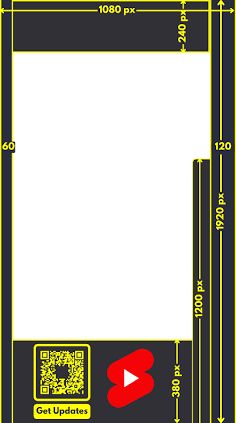
When a viewer watches a Short on mobile, YouTube layers interactive elements directly over the bottom, right, and top edges of your video:
Right Side Margins: The action stack—containing the Like button, Dislike button, Comments, Share icon, Remix tool, and Sound attribution disc—covers roughly the lower-right third of the frame.
Bottom Overlay: Your channel handle, profile picture, Subscribe button, and video title occupy a persistent dark-gradient bar across the bottom 20% of the screen.
Top Bar: The top margin houses search controls, the camera button, and system status icons (time, battery, signal).
Why UI Overlap Hurting Retention
When essential elements fall outside the safe zone, it creates instant visual friction:
Illegible Captions: Placing auto-captions or key text overlays at the very bottom means they get buried behind your channel name and title.
Blocked Focal Points: Positioning faces, product reveals, or graphics along the right edge results in them being hidden under the Like and Comment buttons.
Higher Swipe-Away Rates: Viewers do not spend time trying to read obscured text. If a graphic or sentence is cut off by the interface, their split-second impulse is to swipe to the next video.
Fact 4: 9:16 Unlocks Cross-Platform Content Syndication
The 9:16 vertical aspect ratio serves as the universal framework for cross-platform short-form video syndication. Standardizing video production to 9:16 allows a single primary clip to be distributed seamlessly across major vertical platforms without heavy re-editing or formatting adjustments.
Key Platforms Standardized on 9:16
YouTube Shorts
TikTok
Instagram Reels & Stories
Facebook Reels & Stories
Snapchat Spotlight
Pinterest Idea Pins

Fact 5: Full-Screen Native Framing Triggers Shelf Placement
YouTube uses an automated detection system to categorize uploaded videos. For a video to qualify as a Short and enter the dedicated YouTube Shorts Feed (or “Shorts Shelf”), it must be 3 minutes or less and feature a vertical aspect ratio of 1:1 or taller, with 9:16 (1080 × 1920 px) serving as the platform standard.
If you upload a 16:9 landscape video—even if it is only 15 seconds long—the algorithm will process it as a regular horizontal video rather than sending it to the Shorts feed.
Why It Drives Growth:
Instant Seed Testing: Native 9:16 videos are immediately entered into YouTube’s automated testing pipeline, which serves the clip to an initial seed audience on the Shorts Feed.
Swipe-Away Protection: The Shorts algorithm relies heavily on initial Swipe vs. Stay performance. Videos with native 9:16 framing instantly signal mobile-first content, drastically lowering the initial “swipe-away” rate.
Maximum Real Estate: Native vertical framing utilizes 100% of the mobile viewport, keeping the viewer’s visual focus entirely on your content without screen distractions.
Actionable Creator Tip:
Never rely on YouTube to “auto-detect” landscape clips as Shorts by simply adding #shorts to the title. Always set your editing timeline resolution explicitly to 1080 × 1920 pixels before rendering to guarantee automatic inclusion in the Shorts player.
Fact 6: Incorrect Aspect Ratios Cause Automatic Black Pillarboxing
When you upload a traditional landscape video ($16:9$) or an unformatted aspect ratio directly to YouTube Shorts, the platform doesn’t stretch or crop your footage automatically. Instead, it forces the video into a vertical $9:16$ container by adding solid black bars along the edges. Depending on your video’s original shape, this creates either pillarboxing (vertical black bars on the sides) or letterboxing (horizontal black bars at the top and bottom).
Why Pillarboxing Kills Your Shorts Retention
Immediate “Swipe-Away” Friction: Mobile viewers expect full-screen vertical content. Seeing large black bars instantly signals that the video was meant for long-form landscape viewing, triggering an immediate swipe before your hook can land.
Wasted Mobile Screen Real Estate: A standard $16:9$ video uploaded as a Short occupies less than $35\%$ of the total phone screen. The remaining $65\%$ is dead black space, making text, faces, and visuals far harder to see.
Algorithmic Disadvantage: YouTube tracks the Viewed vs. Swiped Away percentage in the first 3 seconds. Unformatted pillarboxed videos consistently experience higher early swipe-away rates, signalling to the algorithm that the content is low quality or improperly optimized.

Fact 7: Desktop vs. TV vs. Mobile Adaptation
While YouTube Shorts was born as a mobile-first format, viewing habits have shifted dramatically. Millions of users now consume Shorts on desktop browsers, tablet screens, and living room smart TVs. Understanding how the YouTube player adapts your 9:16 aspect ratio across these different devices is critical for maintaining visual quality and driving channel growth.
1. Mobile: The High-Stakes Full-Screen Canvas
The Experience: On mobile, a 9:16 Short occupies 100% of the phone screen. However, this full-bleed view comes with heavy UI overlays—including the channel avatar, subscribe button, audio title, like/comment bar, and system status icons.
Growth Impact: If your core message or text captions sit too close to the edges, mobile viewers will miss them under the UI buttons, leading to quick swipes and dropped retention.
2. Desktop: Center-Framed with Blurred Sidebars
The Experience: Desktop monitors use landscape displays (16:9 or wider). When YouTube renders a vertical 9:16 Short on desktop, it centers the video and automatically fills the empty left and right spaces with a stylized, Gaussian-blurred version of your footage.
Growth Impact: The centered player keeps your main content focused, while the engagement controls move off to the right side of the video window rather than floating directly over your content. Content designed cleanly in 9:16 looks polished and professional on desktop, preventing letterboxing glitches.
3. Smart TVs & Living Rooms: The Fast-Growing Shorts Frontier
The Experience: YouTube’s TV app displays Shorts using a dark background with blurred side margins, positioning video details and subscriber actions cleanly beside the frame rather than covering it. TV viewers interact using a remote control, scrolling vertically through the feed.
Growth Impact: Television screens make low-resolution or incorrectly formatted vertical videos look pixelated and unappealing. Delivering a crisp 1080 × 1920 (or higher) 9:16 master export ensures your content holds up on massive living room displays, capturing high-value watch time from casual TV viewers.
Designing your Shorts in native 9:16 (1080 × 1920) guarantees that YouTube’s multi-device player scales your video cleanly across all screens. By keeping your visual focal points centered and safe from mobile UI boundaries, you deliver an enjoyable, distraction-free experience whether your audience is scrolling on a bus or watching on a 65-inch TV.
Strategic Takeaways & Best Practices
Mastering technical specifications is only half the battle; the real growth happens when you integrate these rules into your daily content workflow. Use these core strategies to transform technical aspect ratio precision into higher retention, better viewer conversion, and channel authority.
1. Adopt a “Native 9:16 First” Production Workflow
Shoot with Intent: Whenever filming new footage—whether on a smartphone or a mirrorless camera—default to vertical orienting (9:16) or film in higher resolution (4K) to allow lossless cropping later.
Maintain Wide Margins: If you are filming landscape video with plans to chop it into Shorts later, keep your subject strictly centered and slightly zoomed out. This leaves ample padding for pan-and-scan edits without cutting off heads or key visual action.
2. Implement Safe-Zone Editing Guides in Your NLE
Use Transparent Overlays: Import a transparent PNG overlay of the YouTube Shorts UI into your editing software (Premiere Pro, CapCut, DaVinci Resolve) to see exactly where the like button, subscribe bar, and title sit.
Center-Lock Critical Elements: Position graphic hooks, dynamic subtitles, and call-to-action arrows within the middle 80% box. This guarantees 100% legibility across mobile, desktop, and TV platforms without UI obstruction.
3. Standardize High-Bitrate Export Profiles
Match Target Resolutions: Export strictly at 1080 × 1920 (FHD) or 2160 × 3840 (4K) at 30 or 60 fps. Avoid arbitrary mobile export ratios like 720 × 1280, which trigger additional YouTube compression artifacts.
Keep Ratios Consistent across Batches: Inconsistent framing causes branding friction. A uniform visual style signals professional quality, encouraging casual viewers to click through to your main channel profile.
4. Build a Content Funnel: Shorts to Long-Form Integration
Strategic Re-Framing: Convert high-performing moments from your long-form videos into 9:16 Shorts snippets to act as “trailers.”
Leverage Related Video Linking: Use YouTube’s native “Related Video” feature in Studio to link your optimized Short directly to its parent long-form video. Clean 9:16 visuals drive higher initial click-throughs, turning quick-scroll attention into deep long-form watch time.
Frequently Asked Questions (FAQs)
Q1: What is the exact best resolution and aspect ratio for YouTube Shorts
A: The standard aspect ratio is 9:16, with the recommended optimal resolution being 1080 × 1920 pixels. For higher visual fidelity—especially on large 4K TV screens—you can also export at 2160 × 3840 pixels (4K) as long as the 9:16 vertical ratio is maintained.
Q2: Will YouTube penalize my video if it’s uploaded in 1:1 (Square) or 16:9 (Landscape)?
A: YouTube won’t actively penalize or remove your content, and videos under 60 seconds with 1:1 or vertical framing will still enter the Shorts feed. However, 16:9 videos trigger heavy letterboxing (black bars top and bottom) or pillarboxing, which lowers viewer retention and swipe-stay rates compared to full-screen 9:16 uploads.
Q3: Can I upload a horizontal 16:9 video and convert it to a Short inside YouTube?
A: Yes. The YouTube mobile app includes a built-in “Edit into a Short” tool that allows you to crop and re-frame long-form horizontal content into a vertical 9:16 frame before publishing.
Q4: Why does YouTube cut off my subtitles or graphics on mobile?
A: This happens when visual elements are placed outside the UI Safe Zone. The YouTube mobile app overlays interactive buttons (Like, Comment, Share, Audio track, and Subscribe bar) around the bottom, top, and right edges. To prevent clipping, keep all essential text and graphics within the middle 80% of the 9:16 frame.
Q5: What is the maximum duration for a 9:16 YouTube Short?
A: YouTube Shorts can be up to 60 seconds long. If your video is 61 seconds or longer, YouTube will automatically upload it as a standard horizontal/vertical long-form video, even if it uses a 9:16 aspect ratio.
Conclusions
Mastering the YouTube Shorts aspect ratio isn’t just about technical compliance—it’s a direct growth lever for your channel. In a fast-paced scrolling environment where you only have milliseconds to hook a viewer, small mistakes like heavy letterboxing, low resolution, or text blocked by UI overlays can immediately cost you retention.
By adopting a strict 9:16 (1080 × 1920) workflow, respecting the mobile safe zones, and optimizing for cross-device viewing on desktop and TV, you create an effortless, high-quality viewing experience. The algorithm favors videos that keep audiences watching, and native framing gives your content the best possible setup to perform.
Clear, concise, and helpful guide. Looking forward to reading more from you.
The discussion in “YouTube Shorts Aspect Ratio: The Ultimate Guide for Creators – kumayoutubeacademy” is clear and useful. The supporting details make the main points much easier to understand.