Ask any YouTube Automation “guru” how to scale a channel to $10,000 a month, and they will almost always give you the exact same advice: Find a great video editor, use flashy transitions, and pick a viral thumbnail.
They aren’t entirely wrong—but they are missing the silent killer of faceless channels.
While video editing gets all the mainstream attention, audio quality is the real, hidden driver of viewer retention and channel monetization.
Think about how you consume YouTube. You can easily watch a video with mediocre, 1080p stock footage if the voice narrating the story is captivating, clear, and well-paced. But the second a video hits your ears with robotic, grating text-to-speech (TTS) or an echoey, unmastered voiceover? You click away.
That split-second decision destroys your Average View Duration (AVD), signaling to the YouTube algorithm that your content isn’t worth promoting. Worse yet, relying on low-effort, robotic audio can land your channel in YouTube’s monetization graveyard for “repetitive or reused content.”
If you want to survive and scale a faceless “cash cow” channel, you don’t just need a video strategy—you need a streamlined, professional audio stack. In this guide, we are diving deep into how to automate your audio workflow using next-generation voice synthesis, dynamic sound design, and automated mixing tools to build a channel that both viewers and the YouTube algorithm love.
Why Audio is King (Even on Video)
Think about the last time you watched a video. If the video looks a little blurry, you might keep watching if the story is interesting. But what happens if the sound is fuzzy, too quiet, or hurts your ears? You click away instantly.
Bad audio ruins a good video. Good audio saves a simple video.
Here is why great audio is a superpower for a faceless YouTube channel:
- It builds trust: High-quality, clear sound makes your channel look professional, even if your visual edits are just simple pictures or stock clips.
- It keeps people listening: A smooth, pleasant voice acts like a magnet. It holds the viewer’s attention, which tells the YouTube algorithm, “Hey, people like this video—show it to more people!”
- It sets the mood: Background music grips people’s emotions. It can make a video feel scary, exciting, or relaxing. If your visuals are basic, your music choices do the heavy lifting to keep people entertained.
What Does an Audio Tool Do for a Faceless Channel?
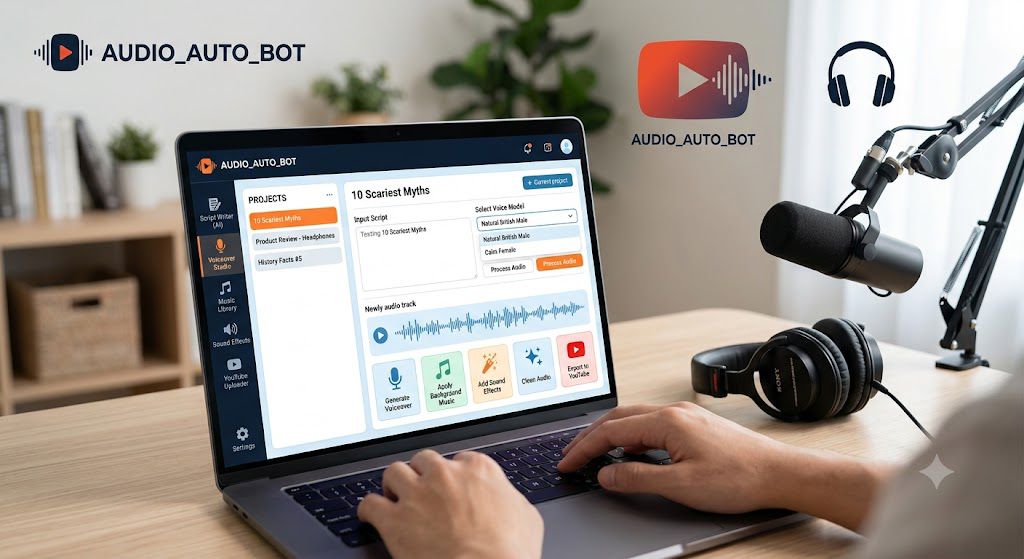
An audio tool handles the entire “sound” side of a faceless YouTube video so you don’t have to use your own voice or buy expensive studio equipment. Since you aren’t showing your face, the audio has to be incredibly clean and engaging to keep people watching.
Here is exactly what these tools do for a channel:
1. Creates Human-Sounding Voiceovers (Text-to-Speech)
Instead of hiring an expensive voice actor or speaking into a microphone yourself, you just type out your video script. The tool reads it aloud using advanced AI. Today’s tools use cloned human voices that include natural breathing, pauses, and inflections, so they don’t sound like old, boring robots.
2. Cleans Up Bad Audio (Audio Enhancement)
If you do decide to record your own voice but live in a noisy apartment or have a cheap microphone, audio tools can save your video. They use AI to instantly remove background noise (like fans, traffic, or echo) and make it sound like you recorded inside a professional soundproof studio.
3. Matches the Mood with Background Music
Good videos need background music to keep viewers from getting bored. Audio tools help you find or generate copyright-free tracks that match the exact emotion of your video—whether it is a high-energy sports video or a calm, relaxing history story.
4. Adds Sound Effects automatically
Some advanced tools can listen to your video script and automatically add sound effects—like a “whoosh” when a new picture pops up, or a subtle camera click—making the final video feel much more professional and high-quality.
1. (Deep Dive): ElevenLabs (For Realistic Voices)
Most people stop watching “faceless” videos because the voice sounds like a boring, cold robot. ElevenLabs fixes this problem. It is an AI tool that makes voices sound exactly like real human beings.
Why it is Great for YouTube Automation
- Real Emotion: The voices can sound excited, serious, or friendly depending on what your script is about. They breathe and pause naturally.
- Massive Voice Library: You can choose from thousands of different voices. You can pick by age, gender, accent (like American, British, or Irish), and tone.
- Clone Your Own Voice: If you want your videos to have your voice, but you do not want to spend hours recording yourself, you can give the tool a 1-minute clip of your speaking voice. The AI will learn it and read all your future scripts for you.
- Multi-Language: You can instantly translate and turn your script into different languages to reach people all over the world.
How to Use It in 3 Easy Steps
Paste Your Script: Type or paste your video script into the text box on the website.
Pick a Voice: Click the voice menu to browse and choose a speaker that fits your video’s vibe (for example, a deep voice for scary stories or an energetic voice for top-10 lists).
Generate and Download: Click the “Generate” button. The AI will read your text out loud in a few seconds. If it sounds perfect, click download to get the audio file for your video editor.
If the AI says a word wrong, change the spelling slightly in your script. For example, if it struggles with a name, spell it out exactly how it sounds when spoken
Tool 2: Adobe Podcast AI (The Magic Eraser for Bad Audio)
If you decide to record your own voice instead of using an AI voice, you do not need to buy an expensive $200 microphone. You can use Adobe Podcast AI.
This is a free website tool that acts like a magic eraser for your audio. If you record a video and hear an air conditioner, a barking dog, or a loud echo in your room, this tool cleans it up instantly.
Why It Is Great for Beginners
- It is Free: You do not have to pay anything to fix your daily videos. The free plan lets you clean up to 1 hour of audio every single day.
- Studio Quality in One Click: It uses AI to make a cheap phone microphone sound like you are speaking inside a professional recording studio.
- No Editing Skills Needed: You do not need to know how to fix bass, treble, or volume levels. The software does all the hard work for you.
Simple Steps to Clean Your Audio
Speak into your phone or computer microphone in a quiet room. Do not worry if there is a little background hum—the tool will fix it. Save the file on your computer.
Open your web browser and go to the official website: podcast.adobe.com/enhance. Sign in with a free account.
Drag and drop your audio file into the box on the screen. Make sure your file is less than 30 minutes long and under 500 MB (which is plenty of time for a standard YouTube video).
Wait a few minutes while the AI cleans the sound. Click the play button to hear the difference, then click Download to save your clear, professional voice track.
Tool 3: YouTube Audio Library (For Free Background Music)
Finding music for your videos can be scary because of copyright rules. If you use a song without permission, YouTube might take your video down or steal your ad money. The YouTube Audio Library fixes this problem completely. It is a massive collection of free music and sound effects built right inside YouTube.
- Why it is great: Every single sound and song here is 100% safe to use. You will never get a copyright strike for using them. It is also completely free.
- How to find it: Open your computer, go to YouTube Studio, and click the music note icon on the left side menu.
- How to use it: You can search for music based on the “mood” of your video—like Happy, Calm, or Dramatic. When you find a song you like, hover your mouse over the date on the right side and click Download to save the audio file to your computer.
Some songs have a “Creative Commons” license. This just means you have to copy a short text line from YouTube and paste it into your video’s description box to give the artist credit. You can use the search filters to only show songs that do not require any credit at all!
Tips for Success (Keep it Human!)
Using audio tools is easy, but if your video sounds too much like a robot, people will leave. To keep your viewers happy and watching until the end, use these simple tips to make your AI audio feel warm and human:
- Avoid the “Boring Robot” Voice: When choosing an AI voice, do not pick the first one you see. Listen to a few options. Look for a voice that has emotion, takes natural breaths, and sounds like a friend talking to another friend.
- Fix the Punctuation for Better Pauses: AI reads exactly what you type. If your sentences are too long, the AI voice will rush through them without stopping. Use plenty of periods (.) and commas (,) to force the software to take a breath and pause naturally.
- Watch Your Music Volume: This is a mistake many beginners make. Your background music should be a soft whisper, not a roar. Always lower your music volume in your video editor so it stays safely below the voiceover. If people have to strain to hear the words, they will click away.
- Tricking the AI to Say Words Correctly: Sometimes, AI software gets confused by unusual names, slang, or technical words. If the AI mispronounces a word, try spelling it out phonetically (the way it sounds). For example, if it says a word wrong, changing the spelling slightly in your text box can completely fix how the tool speaks it.
- Listen to the Final Edit with Headphones: Before you upload your video to YouTube, put on a pair of headphones and listen to the whole thing. Headphones help you catch tiny background noises, weird audio cuts, or volumes that are too loud before your audience does.
Conclusion
Starting a YouTube channel does not mean you have to buy a thousand-dollar camera or change who you are. If you are shy, busy, or just prefer to stay behind the scenes, faceless automation is the perfect path for you.
By using simple audio tools like ElevenLabs or the YouTube Audio Library, you can let technology do the heavy lifting. You supply the ideas, and the software handles the voice and the vibe. The most important step is simply getting started—pick a topic you like, write a short script, and let your tools do the rest!
One comment on “How to Choose the Right faceless youtube automation audiotool for a YouTube Channel”